How to Connect the SteelSeries Arctis Nova 1 to Any Device (PS5, PC, and More)
By - Che Browndon
Updated-on - November 24, 2025
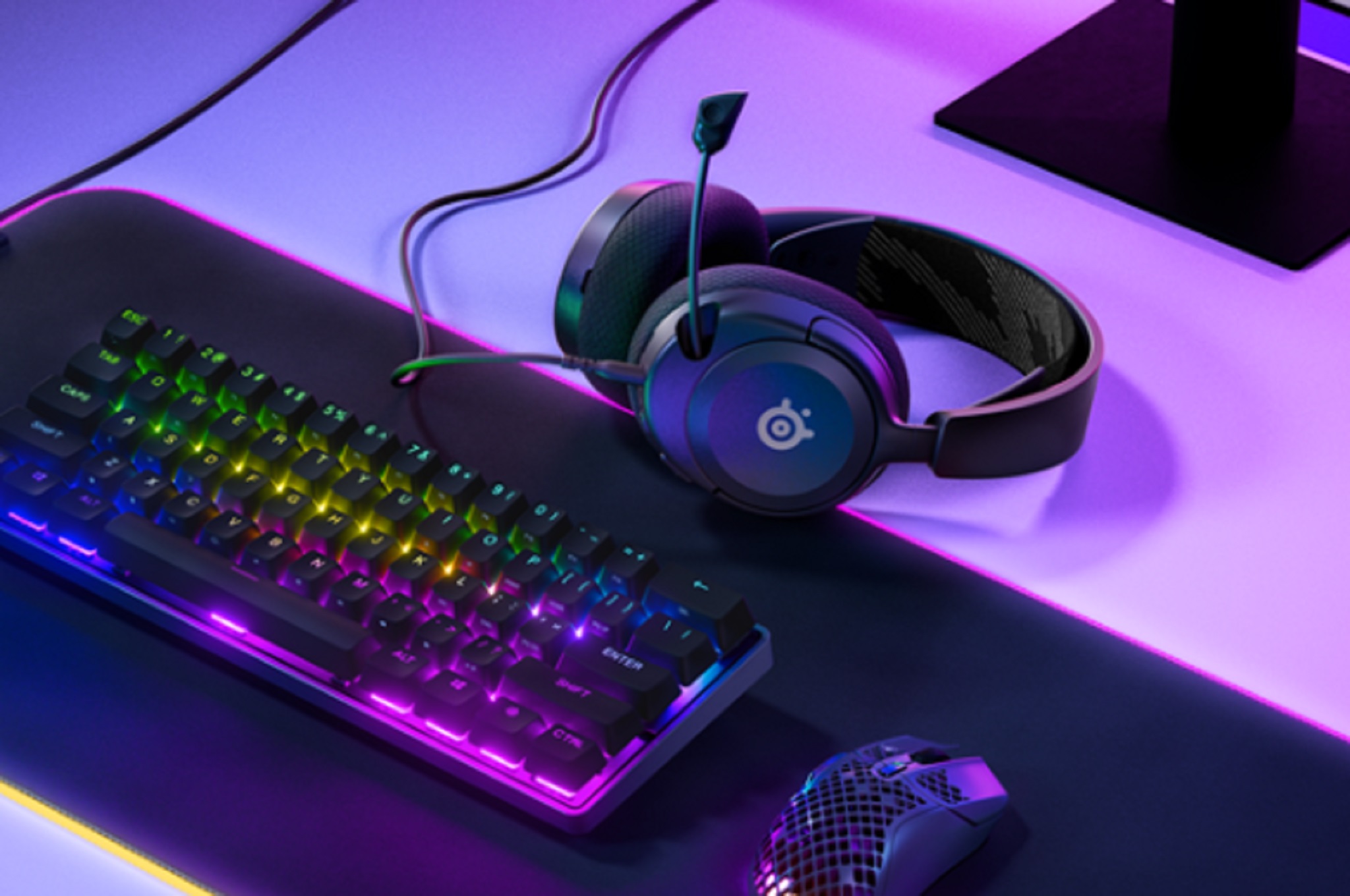
SteelSeries Arctis Nova 1
The SteelSeries Arctis Nova 1 is a lightweight and wired gaming headset built around the
Universal 3.5mm jack. This makes it one of the easiest headsets to connect to the PS5, Xbox, PC, Nintendo Switch and Mobile devices. It’s been confirmed that that SteelSeries Nova 1 has a multi system support which is why it works on PS5, Xbox, PC, Nintendo Switch and Mobile. Nova 1 also has simple onboard controls such volume wheel and mute. This article is going to reveal how to connect the SteelSeries Arctis Nova 1 on all devices, providing a clear step-by-step instruction on each platform plus details on mic configurations.
Key Details to Know Before Connecting the SteelSeries Arctis Nova 1
The Arctis Nova 1 uses a universal 3.5mm TRRS jack so it easily plugs into PS5, Xbox Controllers, The Nintendo Switch (handheld) and most mobile phones. There are also some platform quirks for instance the Xbox/Switch CTIA wiring sometimes referred to as mic on the sleeve. Some PCs have a separate mic/headphone ports and you will need a Y-splitter to use the mic. Another important detail to know is that many mobile phones require a USB-C or Lightning adapter. The SteelSeries Arctis Nova 1aslso has volume wheel and mic mute toggle for quick control
How to Connect the Arctis Nova 1 to PS5
Connecting the SteelSeries Arctis Nova 1 to a PS5 is easy because the headset uses a 3.5mm TRRS jack and this plugs directly to the Dualsense controller. You can do so by following these steps:
1. Plug in the Headset: This can be done by inserting the Arctis Nova 1’s 3.5mm cable into the bottom of your DualSense controller. The PS5 will automatically switch audio output to “Controller Headset”
2. Enable 3D Audio: In order to do this, go to settings -> Sound -> Audio Output. Scroll to 3D Audio for Headphones and turn it “ON”. This activates Sony’s 3D tempest audio engine which works even with wired analog headsets like the Nova 1.
3. Select the Mic: To do this, go to Settings -> Sound -> Microphone. You need to set the input Device to “Controller Headset”. This is to make sure the Nova 1’s built-in mic is being used instead of the DualSense mic.
4. Adjust the Game/Chat Mix: In the Home Screen, press the PS button. Open the Sound menu and adjust the Chat/Game Balance. This helps you because you can tune the sound so you hear teammates or gameplay more clearly
5. Check Mic Sidetone: This controls how much of your own voice you hear in te headset to prevent shouting. To monitor your mic, go to Setting -> Sound -> Microphone. Adjust your Sidetone Volume (Low, medium, high).
How to Connect the Arctis Nova 1 to Xbox Series X/S and Xbox One
1. Plug in the Headset: Insert the Arctis Nova 1’s 3.5mm TRRS plug fully into the Xbox controller’s headset jack. The audio and mic should route immediately.
2. Test the headset: Turn on your Xbox console and press the Xbox button. Join a party or open a game to check the audio or mic
3. Adjust the Game/Chat mix: Press the Xbox button -> Audio (another way is going to Profile & System -> Settings -> Volume and Audio output) -> move the Game/Chat Mixer slider to balance game sound vs. voice sound.
4. Fix low mic volume: Lots of Xbox players complain of this. To do this, Press Xbox -> Parties & Chats -> check your mc level in party overlay. You can also update your controller firmware by: pressing the Xbox button -> Profile system -> Settings -> Device & Connections -> Accessories -> Update. You can also try the headset on another controller or device to rule out headset damage
5. Fix of the Controller Jack Feeling loose: If the controller jack feels loose, test a different controller. You can also use a USB audio adapter plugged into the console as a workaround.
6. Final check: In-game audio or chat setting and privacy can mute or limit mic use. Confirm that all this is set to allow voice chat.
There’s a lot of talk online about Nova 1 vs. Nova 1X so I just want to clarify something. Although SteelSeries Arctis Nova 1 is works on Xbox game console, the Nova 1X is the Xbox branded variant but both still use the same 3.5mm wiring. The Nova 1X may include banding and Xbox firmware optimizations but the connections steps are identical.

How to Connect the SteelSeries Arctis Nova 1 to PC or laptop.
Compared to PS5 and Xbox, the Arctis Nova 1 is much easier to connect to a PC. It was easy for the others but this is too simple.
1. On Single Port Laptops, plug the Nova 1’s 3.5mm TRRS jack into the combo headphone or mic port. It should work immediately.
2. On Dual Port Desktops, use a 35mm Y-splitter to access both audio and microphone. You can test both jacks if the mic isn’t detected.
3. As for Windows Sound Setup, Right click the speaker icon -> Sound Settings -> Choose your headset Output and set the Nova 1(or “Sonar Microphone” if you’re using SteelSeries Sonar) as the Input/Communication device. Disable enhancements and set the mic level to 70 – 90% if you find the volume low.
4. To Boost mic clarity, you can update audio drivers in your machine. After that, you test in Windows “Voice Recorder”, and use SteelSeries Sonar for EQ, Clearcast and to reduce noise.
How to Connect the SteelSeries Arctis Nova 1 to the Nintendo Switch
Handheld Mode (Standard, OLED, Lite)
1. First Locate the 3.5mm headphone jack on the top of the switch
2. Plug the Nova 1’s TRRS 3.5 cable directly into the port. Once you do this the audio and mic will work automatically in supported games be it Fortnite, Apex and more
3. You can adjust volumes using the Switch’s buttons.
Docked Mode
1. The Nintendo Switch dock doesn’t detect a headphone port so the system must detect the headset while being handheld.
2. First plug the headset into the Switch before docking or plug it into your controller if you’re using third party controllers with headphone jacks.
3. After you dock, the audio will then route through the headset.
Before proceeding to the next section, I would like to point out that most Nintendo Switch games use the Nintendo Switch Online App for voice chat. Also, I know I have pointed this out before but not all games support native in-game voice chat. Some games like Fortnite or Apex Legends support it so the Nova 1 can work directly.
How to Connect the SteelSeries Arctis Nova 1 to Mobile (Android and iPhone)
1. The First step is to check your Phone Port If your Phone has a 3.5mm jack. If it does then plug the Arctis Nova 1’s TRRS in and it will carry the audio and mic. According to SteelSeries, the Nova 1 is “great for mobile devices” so it should work on your device.
2. If you don’t have a jack, there are accessories you can buy that’ll help. For USB-C phones, you can buy a USB-C 3.5mm TRRS adapter that supports microphone input (CTIA). For iPhone users, you’ll need a Lightning 3.5mm adapter that supports microphones. Apples Official adapter is the safest choice. You should get a good adapter so you get both audio and mic. This is because there are some generic adapters that support only audio.
3. You insert the headset and then plug in the headset(plug in the headset directly if your device supports it), open voice recorder or a call and speak to verify if the mic works
4. If the mic is noisy or not detected, you can try a different adapter that’s certified, reboot the phone and check app permissions and grant microphone access.
Arctis Nova 1 Mic Setup and Optimization tips
Firstly, try to position the mic boom one finger length from your mouth and angle it slightly to avoid breathing noise. In the PC or Console settings, you should raise you input volume until your voice sounds clear but it shouldn’t be distorted. You should always test your microphone in the PS5, Xbox, or Windows voice settings before entering a game. Finally, you should always double check the physical mute switch on the Nova 1 because many users forget it’s toggled.
Common Problems and Fixes
If you mic isn’t working when you try to connect the Nova 1, make sure you’re using the correct input device and that the TRRS is fully plugged in. Your headset not fully plugged in can also cause Audio to play in just one side. Now, If your volume is low, then there’s a problem a with the game/chat mix settings so you should check that. Another issue most people complain about is a Static or Crackling noise and this can result from a loose controller port or a low quality USB-C/Lightning adapter. For PC users, if your PC isn’t detecting the mic at all, then you most likely need a 3.5mm Y-splitter to separate mic and audio inputs on desktop with dual jacks.
Closure
The Arctis Nova 1 is one of the easiest headsets to use across any device because of its universal 3.5mm design. You just need to connect and viola, everything works. There might be some issues here and there but it’s no big deal because this article has talked about all the information you’ll need to connect your headset without any issue.
Related

PlayStation Plus vs. Xbox Game Pass Ultimate (2025): Which Subscription is Worth It?
There’s a lot of discussion online about PlayStation Plus and Xbox Game Pass
Ultimate in 2025. Gamers are......................
Written by - Che Browndon
Marvel Rivals Season 4.5 Adds Daredevil and Cross-Progression
Daredevil will be coming to Marvel Rivals on October 10, 2025
as the 43rd Hero of......................
Written by - Che Browndon
What role does Emma Frost play in Marvel Rivals?
Emma Frost plays the Vanguard role in Marvel Rivals which makes her a powerful frontline
hero......................
Written by - Che Browndon
Borderlands 4 Vault Hunters: All Characters, Classes & Best Builds
Borderlands 4 will feature several Vault Hunters, each with unique classes
and abilities......................
Written by - Che Browndon
How to Enable Voice Chat (VC) in Roblox: Step-by-Step Guide
Voice Chat in Roblox allows players to communicate in real-time with others making
the game.....................
Written by - Che Browndon

Who Plays James Bond in 007 First Light? Cast & Voice Actor Explained
James Bond in 007 First Light is voiced or played by
Irish Actor.....................
Written by - Che Browndon
007 First Light Release Date, Platforms & Gameplay Details
007 First Light is an upcoming action adventure James Bond game developed
by IO Interactive. The game.....................
Written by - Che Browndon
Hollow Knight: Silksong Release Date and Nintendo Switch Info
After 6 years of anticipation, Hollow Knight: Silksong’s release date has
finally been revealed.
.....................
Written by - Che Browndon
Esports Nations Cup: Format, Teams, Prize & How to Watch
Esports Nations Cup is a new tournament announced by Esports World Cup Foundation
(EWCF), where.....................
Written by - Che Browndon

‘OOF’ Returns to Roblox. Why did Roblox Remove the OOF Sound
Roblox just recently announced the ‘OOF’ sound effect will be returning to the game meaning users will
be able to use the sound effect once more.....................
Written by - Che Browndon

How to Get Celestial Mutation in Grow a Garden
Grow a Garden is a popular Roblox game that lays emphasis on farming
such as planting seeds, watering plants, harvesting crops and much more. The game also has mutations
...................
Written by - Che Browndon

How to Get Lemon in Grow a Garden Roblox
The Lemon Seed/fruit is extremely popular in Grow a Garden Roblox. This isn’t only because
of how good it looks but how rare or scarce it is.
...................
Written by - Che Browndon

All Oasis Egg Pets in Grow a Garden Roblox Explained
On June 28 2025, a new Grow a Garden update was revealed which is known as the Oasis Egg.
Grow a Garden is a Roblox game mode were player can plant, grow and manage a
...................
Written by - Che Browndon

Ubisoft Brings 16 Games to Xbox App on PC, Including Assassins Creed Shadows
Ubisoft is a video game development company based in France and one of the largest in the world. Most
Video Game fans are aware of
...................
Written by - Che Browndon

Xbox Fans Disheartened By Game Console Price Increase. What You Should Know
Officially Launching on November 10, 2020, Microsoft Xbox Series X and Series S are two of the most recent console releases from tech giant Microsoft.
...................
Written by - Che Browndon
Copyright © 2025 ComicCone.com. All Rights Reserved