By - Che Browndon
Written-on - November 20, 2025
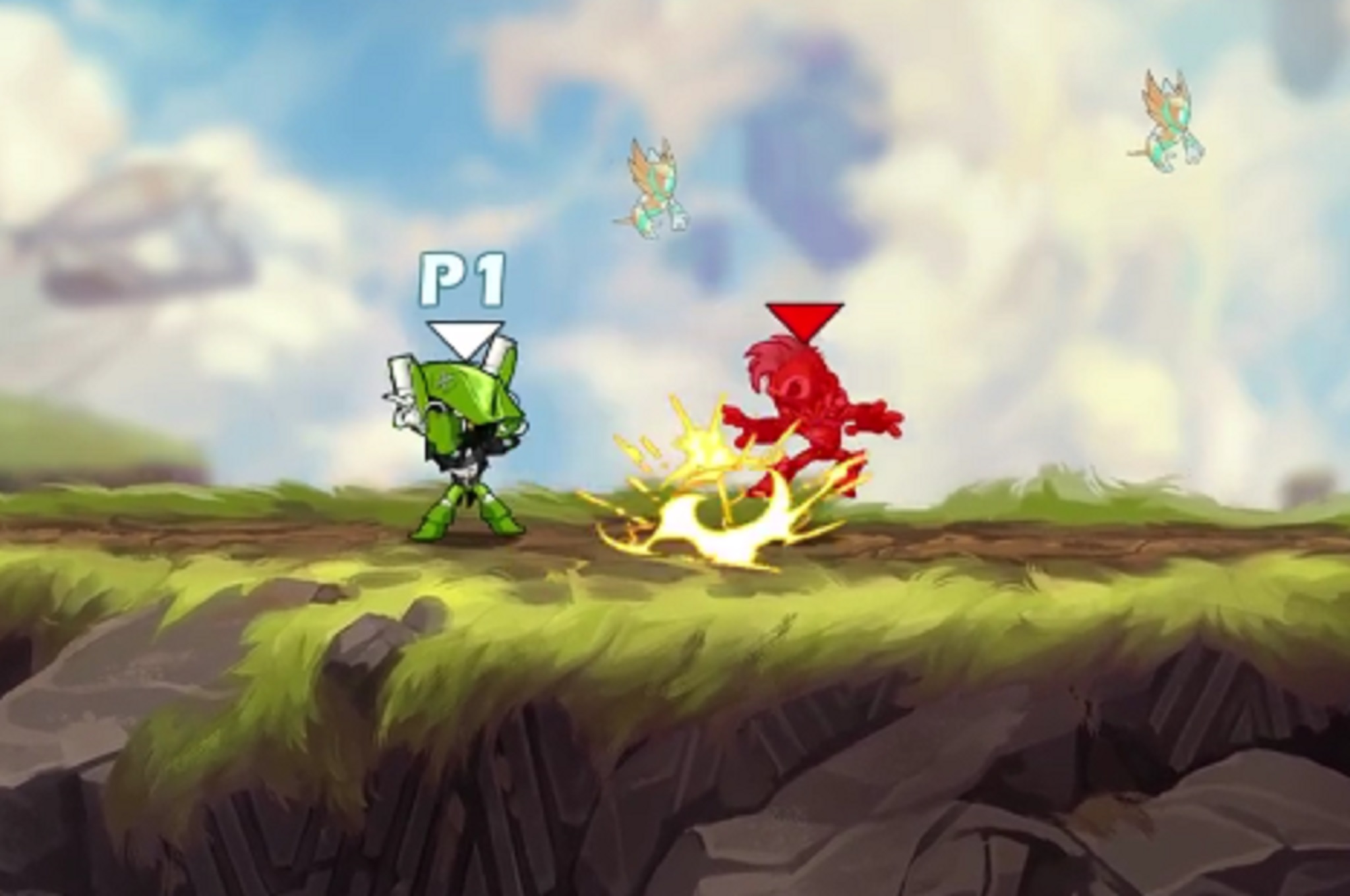
Frames per Second (FPS) is very important in Brawlhalla because it lets you know how smooth Brawlhalla really runs. It also gives a quick and accurate view of your performance so you can spot lag, tweak graphics, and also get a competitive edge during gameplay. This article is going to reveal easy methods on how to display Brawlhalla FPS on Steam, Epic Games Store, PC, Consoles and Mobile. Another added information is going to be the tips on how to boost Brawlhalla frame rates for better matches every session.
Seeing your Frames per Second or FPS in Brawlhalla lets you measure real time performance so you can spot stutters, input lag and frame drops that hurt timing and combos. It also helps you to decide when to lower graphics, disable overlays, or even switch display modes in the game for a smooth and stable gameplay. Most competitive Brawlhalla players use FPS feedback to prioritize smoothness over visuals meanwhile casual players can use it to identity network issues. Monitoring your Brawlhalla FPS is very important because it’s like a way of troubleshooting your performance during gameplay.
Steam provides a built-in FPS counter that easy to use. You can follow the steps below to enable it without any issue.
- First open Steam and Sign in
- From the top menu Click on Steam then go to Settings
- Select the “In-game” option from the left Sidebar
- Under the “In-game FPS Counter”, choose a Screen corner (it can be Top-left, Top-right, bottom-left, or bottom-right. It depends on you).
- You can also click (check) the “High Contrast Color” so the FPS numbers are easier to read but this is optional.
- Some people might see the “Show Performance Monitor” option and you can enable it. You also need to pick the detail level which is either FPS only or Full Metrics
- Finally, Launch Brawlhalla game and the FPS counter (or Monitor) will appear in the screen corner you selected.
I would also like to point out that if the counter doesn’t show, ensure that Steam overlay is enabled, update Steam, and also disable conflicting overlays (Discord, NVIDIA/AMD overlays, Xbox Game Bar, MSI AfterBurner/RivaTuner OSD). The Performance Monitor also gives Deeper metrics as it distinguishes generated vs. rendered frames but its complete feature set on Windows.
Epic Games Launcher itself doesn’t display FPS and Brawlhalla does not include a built-in FPS counter so you’ll need to rely on GPU overlays or third party tools. Firstly, you can adjust your FPS using Brawlhalla launch options. To do this, right-click on Brawlhalla, then go to Manage -> Properties -> Set Launch Options and type "–setfps 60(or another value depending on you)". You can also use( ortype in) "–triplebuffer" to disable vsync and allow higher frames per second. It’s also important to note that the –unlockfps option is deprecated and equivalent to –setfps 1000.
Now to display FPS on the screen, you’ll need external tools or GPU overlays. Nividia users can press Alt + Z to open the GeForce experience overlay then you navigate to Performance -> HUB Layout, and enable the FPS Counter. AMD Radeon users can press Alt + R, open Performance Monitoring, and toggle FPS display.
For a Universal option, you can install MSI Afterburner with RivaTuner, and this shows FPS across Epic, Steam, or Standalone versions of Brawlhalla regardless of the launcher.
Brawlhalla doesn’t have a show “FPS” toggle in the standard in-game menu for all versions. You can try to Open Brawlhalla -> Settings -> System/Advanced and look for any performance or developer option that mentions FPS or stats. If nothing appears, use launch options to control FPS, you cannot use Launch options to display FPS. You can set FPS as –setfbs 60 in the game properties and launch options. Look at the above section (How to Show FPS in Brawlhalla on Epic Games Launcher) to know what I’m talking about.
To display FPS, you need to enable an overlay. Some include the Steam In-Game FPS counter, NVIDIA/AMD overlays, or MSI Afterburner + RivaTuner OSD.
Brawlhalla on console doesn’t offer an in-game numeric FPS counter for players. Console builds are generally optimized and commonly run at 60 FPS so most developers don’t include a visible FPS overlay.
However, to optimize FPS on PS5, go to Settings -> Saved Data and Game/App Settings -> Game Presets and Choose Performance Mode if the game supports it. This helps prioritize frame rate
For Xbox Series X/S gamers, open Manage Game -> Compatibility options and toggle FPS Boost when available. For exact numbers on consoles, you’ll need an external capture device or developer tools.
Brawlhalla mobile versions do not include a build-in FPS counter but there are other ways to show FPS and it depends (Android or iOS).
For Android, you can enable Developer Options then select the option to Show Refresh Rate/GPU Profile to monitor FPS, or you can use third party apps like Games Booster (For Samsung Users), GameBench or GPU Watch to display frame rate.
As For iOS users, Apple doesn’t provide an FPS overlay in Brawlhala. Apple users can rely on Device features such as ProMotion 120Hz support on compatible iPhone or iPads to ensure smoother gameplay but numeric FPS is not visible without external capture or developer tools.
Even with Overlays available, FPS in Brawlhalla may fluctuate depending on your device. This section is going to list out some tips you can do to improve Frames per second in Brawlhalla in order to boost performance.
- First Lower graphics or resolution to reduce strain.
- Turn off background animations or effects to free GPU power
- Close unnecessary apps running in the background
- Use Full screen mode for a better frame stability
- You can reduce your Monitor refresh rate if your hardware struggles to maintain high FPS
- Disable overlays like Discord, Xbox Bar, NVIDIA ShadowPlay, or Steam Monitor when not needed
- Finally, try to update your graphic drivers regularly.
Monitoring your FPS in Brawlhalla helps player identify performance issue and optimize gameplay. Steam offers the easiest FPS display in Brawlhalla because it’s easy to use meanwhile Epic Games launcher and consoles rely on overlays or hardware features. Mobile also lacks official FPS counters but GPU monitoring apps can help. All the tools mentioned in the article will ensure a can see your FPS which will help create smoother matches and improve your overall gameplay experience in Brawlhalla.
What Elo is Platinum in Brawlhalla
In Brawlhalla, player ranking uses the Elo system to reflect a player’s skill and progression.......................
Written by - Che Browndon
Is Brawlhalla Crossplay in 2025? Complete Platform & Friends Guide
Brawlhalla is currently one of the most popular fighting games because it is......................
Written by - Che Browndon
How to Add Friends in Brawlhalla (2025 Update)
Brawlhalla is currently one of the most popular platform fighting games in 2025. The game is......................
Written by - Che Browndon
What is VIP Time in Kingshot and How Does It Work
VIP Time in kingshot refers to an active time period where your account enjoys the bonus perks tied to......................
Written by - Che Browndon
Marvel Rivals Season 4.5 Adds Daredevil and Cross-Progression
Daredevil will be coming to Marvel Rivals on October 10, 2025 as the 43rd Hero of......................
Written by - Che Browndon

Marvel Rivals Season 4.5 Adds Daredevil and Cross-Progression
Daredevil will be coming to Marvel Rivals on October 10, 2025 as the 43rd Hero of......................
Written by - Che Browndon
Chainsaw Man Movie Reze Arc Crushes Japanese Box Office with ¥3.58 Billion
Chainsaw Man The Movie: Reze Arc is a huge success in the Japanese Box office. The movie has ...................
Written by - Che Browndon
99 Nights in the Forest Bandage Location
Bandages are one of the most vital heating items in 99 Nights in the Forest because......................
Written by - Che Browndon
What Does VIP Do in Steal A Brainrot? All Perks & Benefits
In Steal a Brainrot, the VIP Gamepass gives players exclusive......................
Written by - Che Browndon
When is Admin Abuse in Steal a Brainrot?
Admin Abuse event in Steal a Brainrot usually happens on......................
Written by - Che Browndon
Borderlands 4 Vault Hunters: All Characters, Classes & Best Builds
Borderlands 4 will feature several Vault Hunters, each with unique classes and abilities......................
Written by - Che Browndon
How to Enable Voice Chat (VC) in Roblox: Step-by-Step Guide
Voice Chat in Roblox allows players to communicate in real-time with others making the game.....................
Written by - Che Browndon

Who Plays James Bond in 007 First Light? Cast & Voice Actor Explained
James Bond in 007 First Light is voiced or played by Irish Actor.....................
Written by - Che Browndon
007 First Light Release Date, Platforms & Gameplay Details
007 First Light is an upcoming action adventure James Bond game developed by IO Interactive. The game.....................
Written by - Che Browndon
Sword Art Online Fractured Daydream: How to Unlock Characters, Boss Raids & Strea
In Sword Art Online Fractured Daydream, players can unlock characters by progressing through.....................
Written by - Che Browndon
What Is Sword Art Online Fractured Daydream? Gameplay, Story & Characters Explained
Sword Art Online: Fractured Daydream is an action Role playing Game set in the.....................
Written by - Che Browndon
Sword Art Online Fractured Daydream Release Date, Platforms & Crossplay
Sword Art Online Fractured Daydream is a MMO RPG game officially launched worldwide on.....................
Written by - Che Browndon
Hollow Knight: Silksong Release Date and Nintendo Switch Info
After 6 years of anticipation, Hollow Knight: Silksong’s release date has finally been revealed. .....................
Written by - Che Browndon
Esports Nations Cup: Format, Teams, Prize & How to Watch
Esports Nations Cup is a new tournament announced by Esports World Cup Foundation (EWCF), where.....................
Written by - Che Browndon
PEAK Game Explained: What It Is, Who Made It & How Much It Costs
PEAK, also referred to as Peak game is a popular co-op climbing survival game developed by Aggro Crab and Landfall. Aggro Crab and Landfall Games might not be.....................
Written by - Che Browndon
‘OOF’ Returns to Roblox. Why did Roblox Remove the OOF Sound
Roblox just recently announced the ‘OOF’ sound effect will be returning to the game meaning users will be able to use the sound effect once more.....................
Written by - Che Browndon
How to Get Celestial Mutation in Grow a Garden
Grow a Garden is a popular Roblox game that lays emphasis on farming such as planting seeds, watering plants, harvesting crops and much more. The game also has mutations ...................
Written by - Che Browndon
How to Get Lemon in Grow a Garden Roblox
The Lemon Seed/fruit is extremely popular in Grow a Garden Roblox. This isn’t only because of how good it looks but how rare or scarce it is. ...................
Written by - Che Browndon
All Oasis Egg Pets in Grow a Garden Roblox Explained
On June 28 2025, a new Grow a Garden update was revealed which is known as the Oasis Egg. Grow a Garden is a Roblox game mode were player can plant, grow and manage a ...................
Written by - Che Browndon
Ubisoft Brings 16 Games to Xbox App on PC, Including Assassins Creed Shadows
Ubisoft is a video game development company based in France and one of the largest in the world. Most Video Game fans are aware of ...................
Written by - Che Browndon
Xbox Fans Disheartened By Game Console Price Increase. What You Should Know
Officially Launching on November 10, 2020, Microsoft Xbox Series X and Series S are two of the most recent console releases from tech giant Microsoft. ...................
Written by - Che Browndon
Copyright © 2025 ComicCone.com. All Rights Reserved